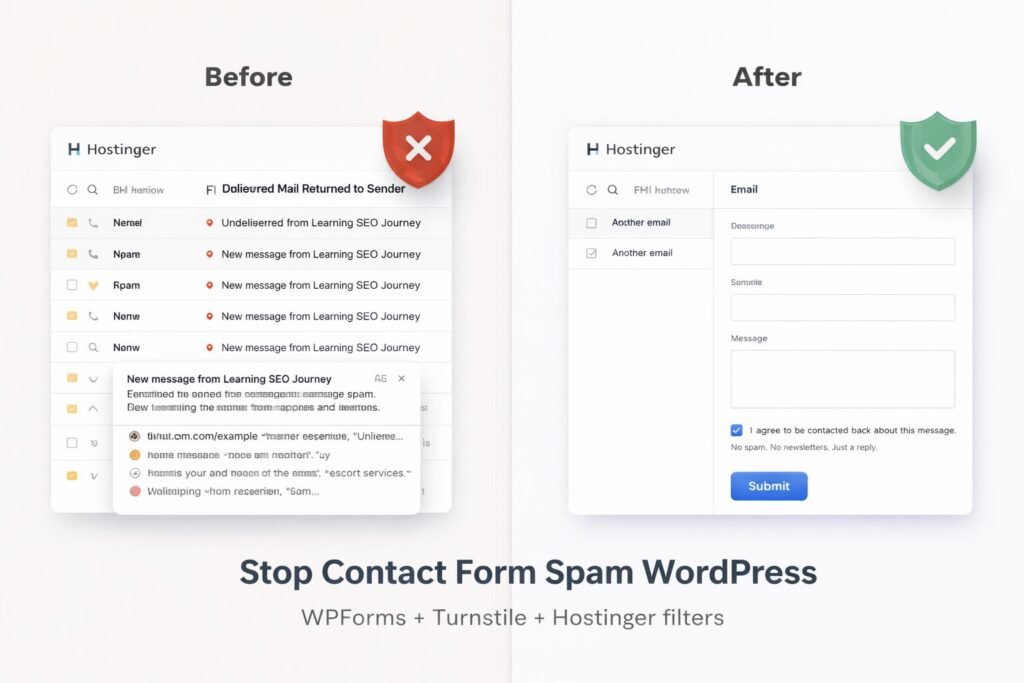
I thought my contact form was innocent. Cute. Simple. “Just in case a recruiter wants to say hi. 😁”
Then Hostinger Mail started getting messages that looked like they were written by a blender, plus random links, plus the classic drama email, “Undelivered Mail Returned to Sender”.
So I did what any calm adult would do. I fixed it. And yes, this is the exact setup I used to stop contact form spam WordPress style, without turning my portfolio into a CAPTCHA obstacle course.
Quick summary (what this post covers)
In this technical cleanup, I fixed the exact issues that were stopping my site from looking “launch ready”, broken internal links (404), unnecessary redirects, spam form noise, and a couple of indexability checks in Search Console. This post documents what I found, what I changed, and how I verified the results.
Main fixes
- Removed internal links that pointed to deleted pages and categories
- Created redirects only when a real replacement page existed
- Fixed an email obfuscation link that was generating a fake 404 in crawlers
- Verified the cleanup with Screaming Frog, then rechecked the key URLs in Search Console
What I wanted | What I did | Result |
|---|---|---|
| Stop junk in Inbox | Hostinger Mail filters | Inbox stayed clean |
| Stop bots from submitting | WPForms anti spam + time limit | Fewer spam submissions |
| Block the rest without annoying humans | Cloudflare Turnstile | Bots got blocked, humans kept their dignity |
| Keep Gmail backup reliable | Gmail filter for my domain | Backup stopped dumping my messages in Spam |
Why I was getting those emails in Hostinger Mail
Here is the boring truth that I refuse to explain in a boring way.
My WordPress contact form sends email notifications.
Bots discovered it.
Bots submitted spam.
WordPress forwarded spam to my mailbox like a helpful little assistant that does not understand danger.
So the spam showed up as “New message from…” emails, and sometimes I got bounce messages (Mailer Daemon) because the system detected spammy content and refused delivery.
That is not a “Hostinger issue”. It is just what happens when you leave a form open on the internet.
Step 1, Clean my Inbox with Hostinger free filters
Hostinger filters do not stop bots. They stop Inbox chaos. I used them as a cleanup layer while I fixed the real problem inside WordPress.
Filter 1, move Mailer Daemon bounces out of my life
| Filter | Rules | Scope | Action |
|---|---|---|---|
| Bounces, Mailer Daemon | Subject contains Undelivered Mail Returned to Sender OR From contains MAILER-DAEMON | Match any rule | Move to Spam (or Trash) |
These emails are not leads. They are just your mail system screaming into the void.
Filter 2, catch link spam from form messages
Important, I did not filter by the subject “New message from…”. That would send real messages to Spam too.
Instead, I filtered by patterns that spam always includes.
| Filter | Rules | Scope | Action |
|---|---|---|---|
| Spam, links raros | Body contains http OR Body contains tinyurl | Match any rule | Move to Spam |
Filter 3, allow legit form messages into Inbox
Important, this is the “save the good stuff” filter. It makes sure real messages do not get trapped by your spam filters.
Instead of filtering by subject (too generic), I whitelist the sender from my own domain.
| Filter | Rules | Scope | Action |
|---|---|---|---|
| Allow, WPForms legit | From contains daphne (at) learningseojourney( dot)com AND Subject contains New message from Learning SEO Journey | Match all rules | Move to Inbox |
That kept my Inbox clean immediately.
Why my Gmail backup sometimes did not receive messages
Because forwarding usually forwards Inbox, not Spam.
So if Hostinger moved something to Spam, my Gmail backup never saw it. That is not broken. That is the system working as designed.
Step 2, Stop contact form spam WordPress at the source in WPForms
Now the real fix.
In WPForms, inside my contact form, I went to,
Settings, Spam Protection and Security
And I turned on,
Modern anti spam protection
Minimum time to submit (I set it to 5 seconds)
Bots submit forms instantly. Humans take a few seconds. That time rule alone blocks a surprising amount of garbage.
Step 3, Add Cloudflare Turnstile (clean, low friction, portfolio friendly)
This is where I stopped hoping and started blocking.
Turnstile is Cloudflare’s verification tool. Think “CAPTCHA alternative”, but without asking visitors to identify 14 traffic lights 🤪 like it is a psychology test. 😕 WPForms Turnstile setup guide
What Cloudflare is, in normal human language
| Term | What it means |
|---|---|
| Cloudflare | A service that can protect and manage website traffic, and also provide Turnstile verification |
| Turnstile | A bot check that helps stop form spam without annoying real people |
| “Behind Cloudflare” | Your web traffic goes Visitor → Cloudflare → your hosting, but you do not need this just to use Turnstile |
That is why I selected Pre clearance = No. It is extra complexity that I did not need for a simple portfolio contact form. Cloudflare Turnstile documentation
Turnstile settings I used
| Where | Setting | Value |
|---|---|---|
| Cloudflare, Turnstile | Domain | learningseojourney.com (no https, no www) |
| Cloudflare, Turnstile | Mode | Managed |
| Cloudflare, Turnstile | Pre clearance | No |
| WPForms, Settings, CAPTCHA | Keys | Paste Site key + Secret key |
Security note, the Secret key is private. If you accidentally expose it, delete the widget and generate a new one. I did that once, and I survived.
Step 4, The small form tweaks that made it look professional (and less spam friendly)
I also tightened the form so it looks like a real portfolio, not a public dumping ground.
| Form change | What I set | Why it helps |
|---|---|---|
| Consent checkbox | Required | Cleaner, more serious, and stops some junk |
| Consent text | “I agree to be contacted back about this message.” | Clear and short |
| Microcopy below | “No spam. No newsletters. Just a reply.” | Builds trust fast |
| Message length | 500 characters max | Stops long spam dumps |
Step 5, Testing (because I like proof, not vibes)
I tested in an incognito window so cookies and logins did not fake the results. my Technical SEO for Beginners workflow
| Test | Message | Expected result |
|---|---|---|
| Clean test | Normal text, no links | Should land in Inbox and forward to Gmail |
| Spam test | Include https:// example (dot) com | Should land in Spam or get blocked, Inbox stays clean |
When the clean test worked and the spam test went to Spam, I knew my setup was doing its job.
Step 6, Fix Gmail backup so it stops panicking
Even after I managed to stop contact form spam WordPress style, Gmail can still be overprotective with forwarded messages.
So I created a Gmail filter,
From *@learningseojourney (at) gmail (dot) com
Never send it to Spam
That made the backup reliable again.
What changed after all this
My Inbox stopped looking like a bot playground.
My contact form became usable for real humans.
And I did it without annoying recruiters with puzzles.